User Interface Overview
IntensityView is organized around a dockable workspace. The central idea is simple: manage loaded photometric documents on the left, inspect or edit the selected data in the main content area, and add supporting panes when a workflow needs persistent diagrams or metrics.
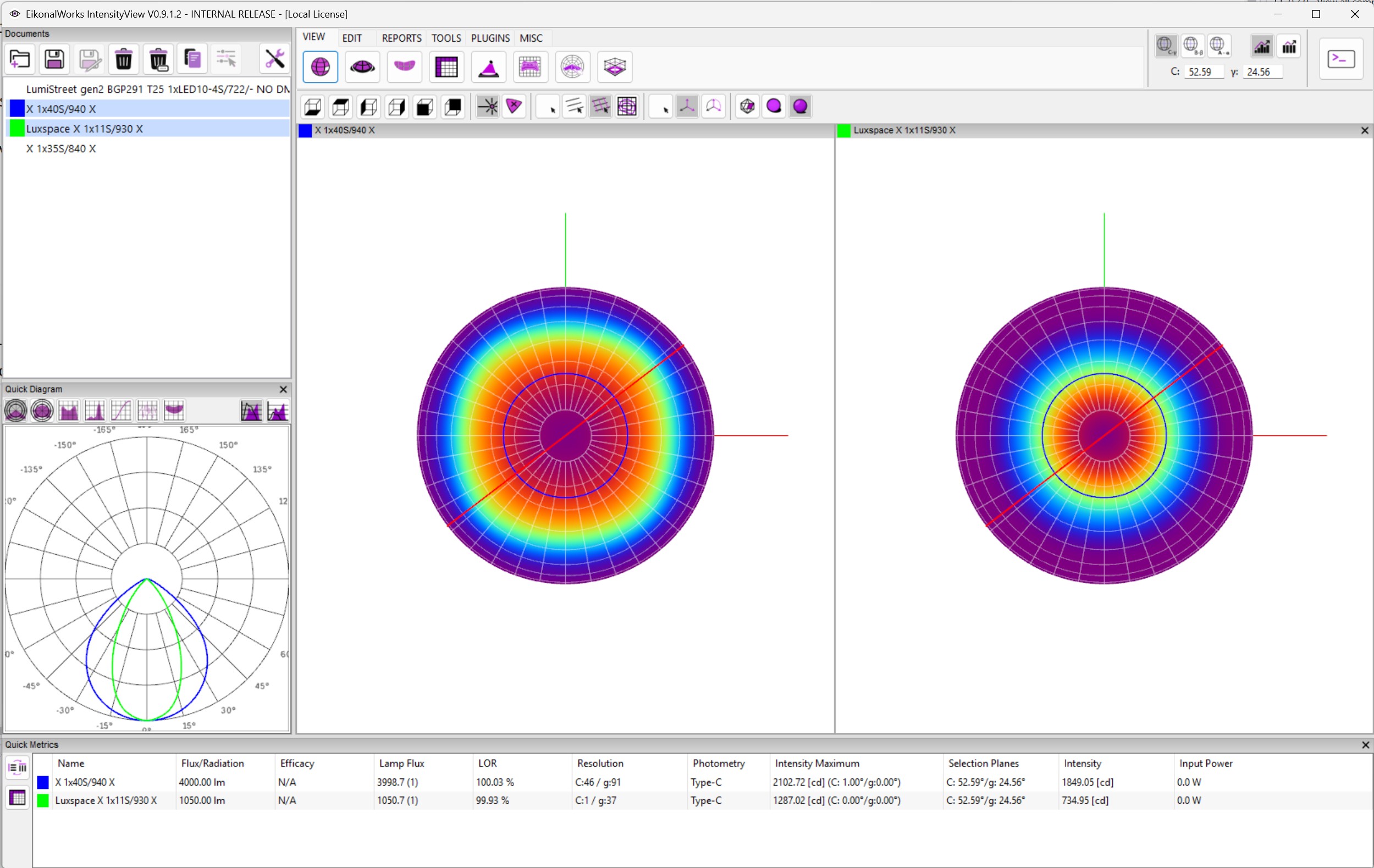
Main areas
Documents Pane
The Documents pane is the primary file and selection area. It contains the document toolbar and the list of loaded luminaires, emitter channels, and resulting intensity distributions.
Use this pane to:
- Open photometric files.
- Save the selected file or save it under a new name.
- Remove selected documents or clear all loaded documents.
- Duplicate selected luminaires when the packaged build supports it.
- Open the Luminaire Configurator for selected luminaire data.
- Select the intensity distributions that views, tools, metrics, and reports should use.
The Documents pane is part of the default layout and is not intended to be closed in normal use.
Main Content Pane
The Main Content pane is the central working area. It displays the currently selected page: view modes, edit tools, reports, utility tools, the console, About, or bug report / feature request pages.
When you choose a mode from the application navigation, IntensityView replaces the current main page while keeping the selected documents and optional panes available.
Quick Diagram Pane
The Quick Diagram pane provides a persistent chart for the current selection. It is useful when you want a diagram to remain visible while changing edit pages, report pages, or document selection.
The default layout includes this pane. It can also be added from Settings > Add pane > Quick Diagram View.
Quick Metrics Pane
The Quick Metrics pane shows compact metrics for selected intensity distributions. It is useful for repeated comparison while editing or validating photometric data.
The default layout includes this pane at the bottom. It can also be added from Settings > Add pane > Metrics Pane.
Diagram Panes
Additional diagram panes can be added from Settings > Add pane:
- Polar Diagram H
- Polar Diagram V
- Cartesian Diagram H
- Cartesian Diagram V
- Iso-Candela Diagram
These panes are optional. They can be docked, floated, resized, or closed depending on the current workflow.
Settings menu
The Documents pane toolbar includes the Settings menu. It groups workspace, visualization, and help commands.
False Color Scale
The false color scale controls the palette used by supported false-color views. Available options include trigonometric purple-green-red, linear black-purple, and Ansys-like color scales.
False Color Tone
The false color tone controls gamma correction for supported false-color views. Available options are linear, pow(1/2), pow(1/4), and pow(1/8).
Layout
The layout submenu manages wxAUI perspectives:
- Reset Default clears the saved default perspective. The default layout is restored after restart.
- Save Current Layout writes the current dock layout to an
.ewpperspective file. - Save Current Layout as Default stores the current layout in application settings.
- Load Layout loads an
.ewpperspective file and applies it to the current workspace.
Use layout files when you want different workspaces for different tasks, for example reviewing files, editing photometry, and preparing reports.
Add pane
The Add pane submenu creates optional panes. If a pane has been closed, this menu is the usual way to bring it back without resetting the whole layout.
Settings
The Settings.. command opens the application settings window. Settings include persistent application preferences such as layout storage, default view behavior, chart resolution, report preferences, logging, and related options.
Help
The Help submenu opens this manual, the keyboard shortcut reference, License Manager, and About page.
Working with dockable panes
IntensityView uses wxWidgets AUI docking. Panes can be resized, docked to different edges, floated as separate windows, or closed if they are optional. If the layout becomes inconvenient, use Settings > Layout > Reset Default or load a saved perspective.
The Main Content pane remains the primary work area. Optional panes are best used for information that should stay visible while the main page changes.