Photometry Type And Resolution
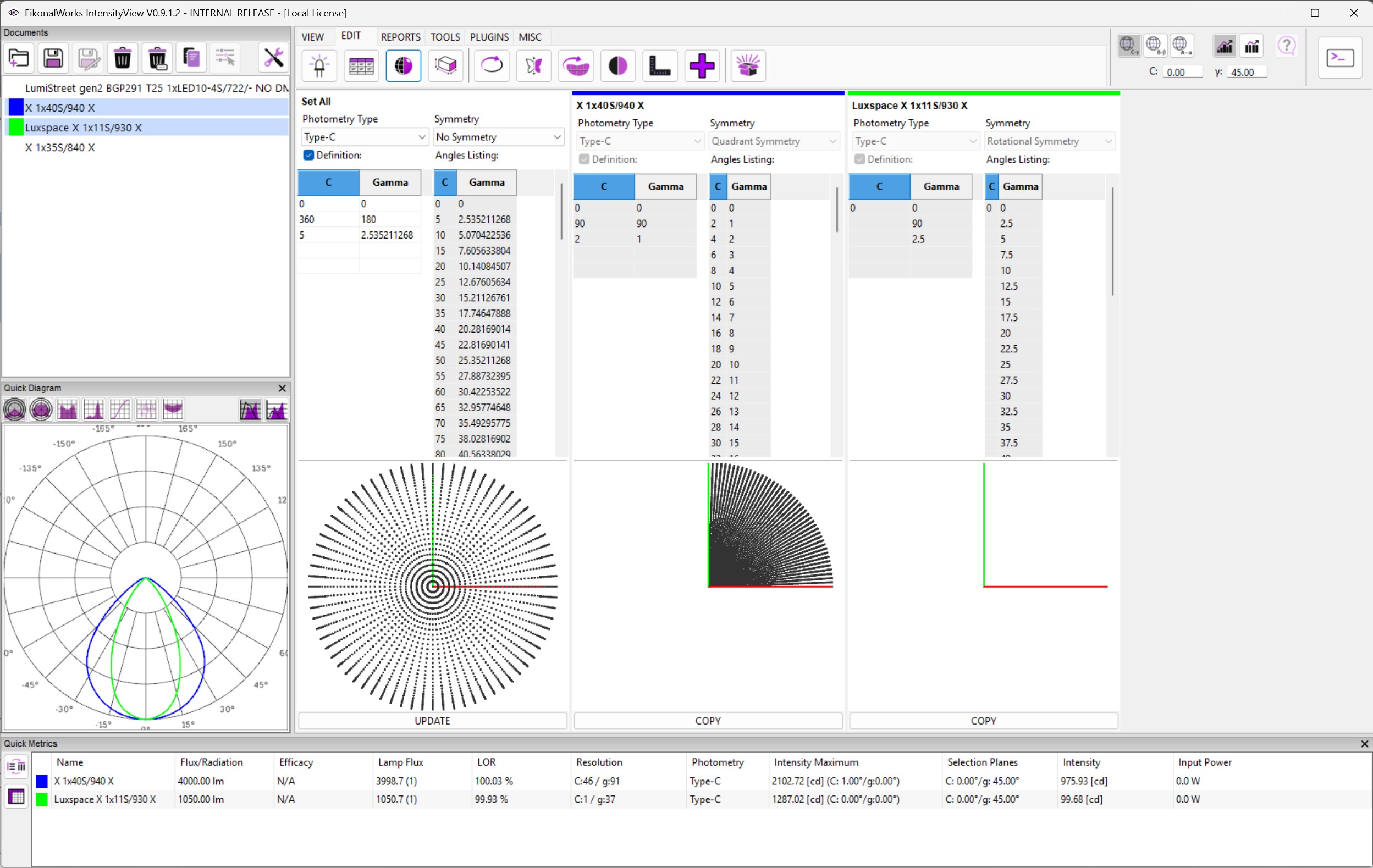
The Photometry Type And Resolution page changes the photometric coordinate type, symmetry, and angular resolution of selected intensity distributions.
Set All
The left Set All panel is editable. Press UPDATE in this panel to apply its setup to all selected photometries. Each selected photometry is shown in a read-only panel to the right. The COPY button on a selected photometry copies that photometry's setup back into Set All.
Photometry Type
The Photometry Type choice selects the coordinate definition:
- Type-C uses C and Gamma axes.
- Type-B uses B and Beta axes.
- Type-A uses A and Alpha axes.
The grid column labels update to match the selected photometry type.
Symmetry
The Symmetry choice controls the planar-axis range:
- No Symmetry: full planar range.
- 0-180 Symmetry: C planes from 0 to 180.
- 90-270 Symmetry: C planes from 90 to 270.
- Quadrant Symmetry: C planes from 0 to 90.
- Rotational Symmetry: a single C plane at 0.
Type-A and Type-B use a planar range from -180 to 180 and a conic range from -90 to 90.
Definition And Angles Listing
When Definition is checked, the left grid defines angular ranges by start, end, and step values. This is the compact way to describe evenly spaced axes.
When Definition is unchecked, the right grid is edited directly and every angle must be listed one by one.
Invalid cells are highlighted red. For Type-C, Gamma must start at 0 and contain at least two values. For Type-A and Type-B, the Alpha or Beta axis must start below 0, include 0, and end above 0.
Preview
The small 3D preview shows the resulting angular definition. The original selected photometry is changed only when UPDATE is pressed in Set All.