EikonalWorks User's Manual
  • Workbench
  • IntensityView
Search Results for

    Show / Hide Table of Contents
    • Introduction
    • Installation and License Activation
    • User Interface
      • Keyboard Shortcuts
    • Supported File Formats
      • IES LM-63 Files
      • EULUMDAT Files
      • PHILLUM Files
      • EikonalWorks Intensity Files
      • IES TM-14 Files
      • IES TM-33 JSON Files
      • IES TM-33 XML Files
      • GLDF Files
    • View Modes
      • Sphere View
      • 3D View
      • 2D Map View
      • Table View
      • Illuminance View
      • Isocandela View
      • Polar And Cartesian Diagram View
      • Rendered Illuminance View
    • Edit Tools
      • Properties
      • Property Fields
      • Photometry Type And Resolution
      • Geometry Editor
      • Rotation
      • Symmetrize
      • Automatic Alignment
      • Smoothing And Denoising
      • Scale
      • Combine
      • Photometry Packaging Builder
    • Reports
      • UGR Table
      • UGR Chart
      • Soellner Diagram
      • Luminance Table
      • Utilization Factor Table
      • Uniformity Table
      • Zonal Lumen Table
      • Beam Spread
      • Luminaire Classification System
      • IES Roadway Report
      • Roadway Applicability
      • Color Plot
    • Tools
      • Photometry Modification Tool
      • Roadway Editor
      • Roadway Calculator
      • Roadway Generator
      • Roadway Optimizer
    • Plugins
      • LightTools Link
    • Miscellaneous
      • License Management

    LightTools Link

    LightTools Link

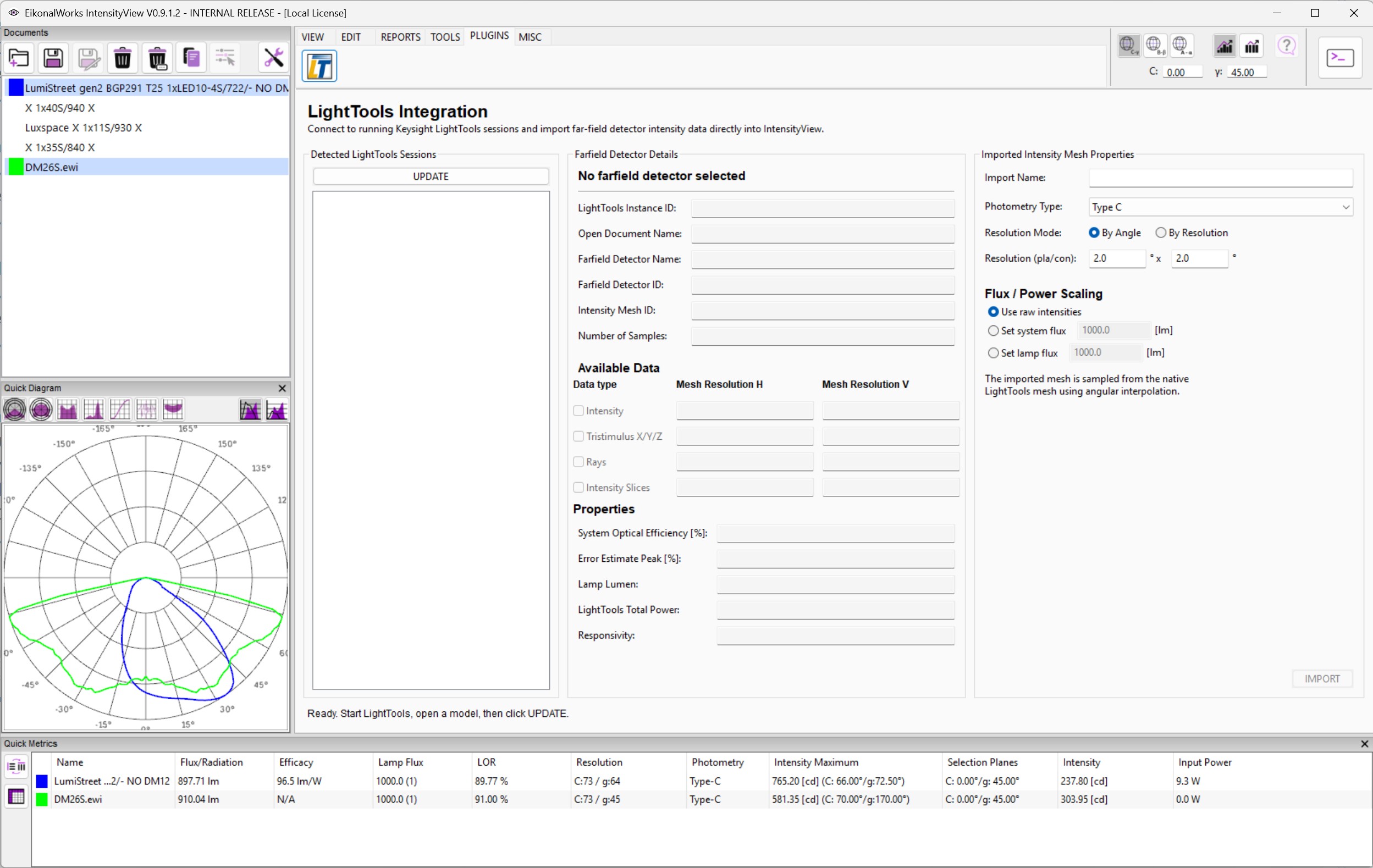
    The LightTools Link plugin connects IntensityView to running Keysight LightTools sessions and imports far-field detector data directly from the LightTools database.

    Detected LightTools Sessions

    UPDATE searches for running LightTools instances and lists available documents and far-field detectors. Select a detector in the tree to inspect its data.

    Farfield Detector Details

    The details panel shows read-only detector metadata:

    • Instance ID, document name, detector name, detector ID, mesh ID, and sample count.
    • Availability of intensity, tristimulus XYZ, rays, and intensity slices.
    • Mesh resolution for each available data type.

    Only detectors with intensity mesh data can be imported.

    Import Properties

    • Import name: emitter name assigned to the imported photometry.
    • Photometry type: Type A, Type B, or Type C destination photometry.
    • Resolution mode: by angle step or by output resolution.
    • Planar and conic resolution fields: define the destination Type C axes. Angle steps must be positive and divide 180 evenly.
    • Flux mode: use raw intensities, set system flux, or set lamp flux.
    • System flux and lamp flux: target values used when a set-flux mode is active.

    The panel also displays source optical efficiency, estimated peak error, lamp lumen, LightTools total power, and responsivity. The flux unit changes according to the detector responsivity.

    Import

    IMPORT loads the selected detector mesh, resamples it to the requested axes, copies intensity and available color data, applies the chosen flux scaling, and adds the result to the open IntensityView project.

    The plugin is Windows-only because it depends on the LightTools automation interface.

    In this article
    Back to top Generated by DocFX