Photometry Modification Tool
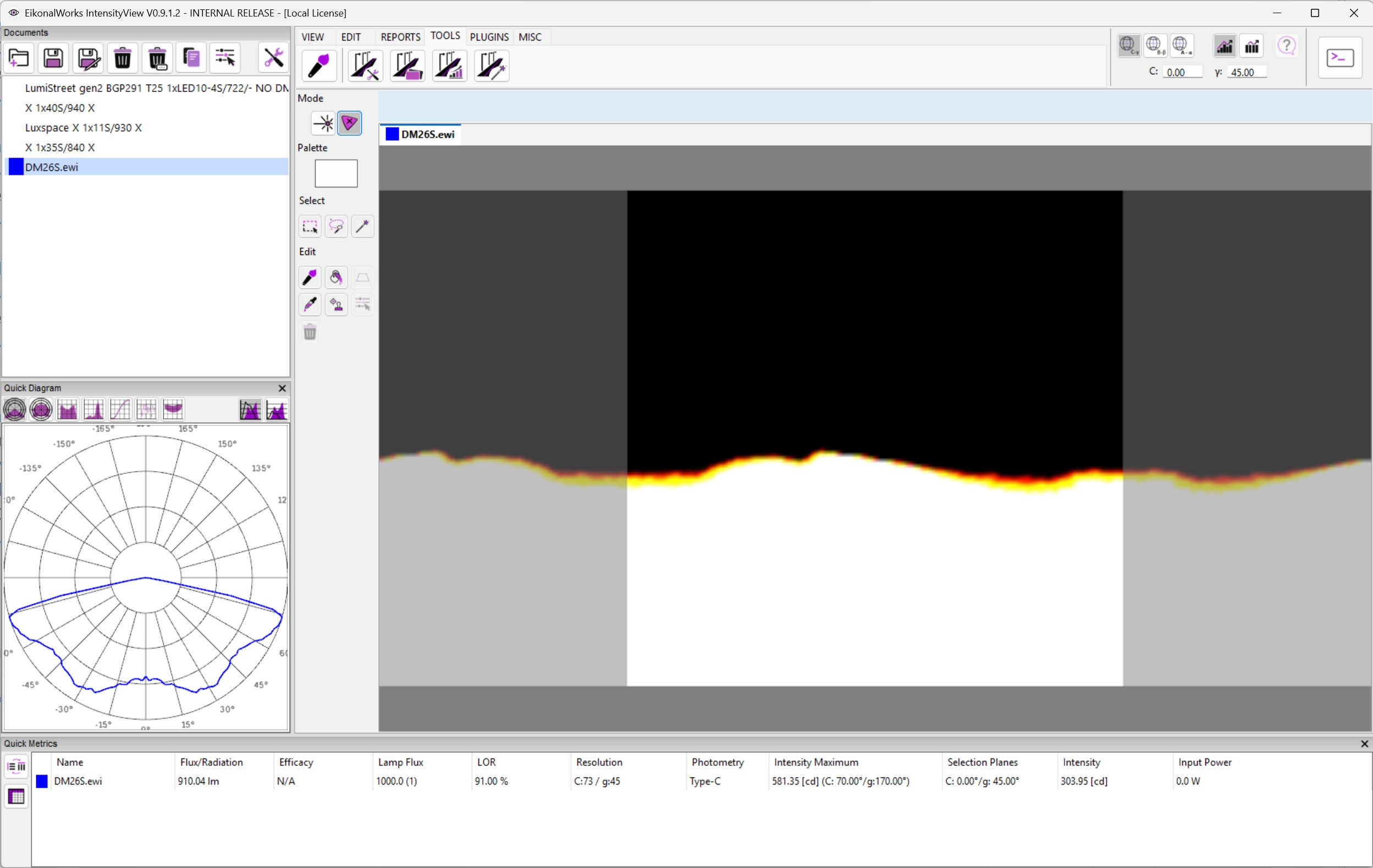
The Photometry Modification Tool is the editing workspace for luminous intensity distributions. It behaves like a paint editor for photometry: select areas on a 2D angular map, then paint, fill, clone, transform, scale, add, or erase values.
Mode
 Luminous Intensity edits candela values.
 True Color edits color coordinates where color data is available.
The palette changes with the mode. Intensity mode uses an intensity picker. True Color mode uses a color point picker.
Selection Tools
 Box Select creates a rectangular selection on the 2D map.
 Lasso Select creates a freeform selection.
 Fuzzy Select starts from a clicked point and expands to nearby points whose intensity or color difference is within the threshold field.
Edit Tools
 Paint Brush paints the selected intensity or color into the photometry. Radius controls brush size and Gradient controls edge falloff.
 Paint Bucket fills a fuzzy-selected region using the current palette value.
 Transform distorts a selected lasso boundary. Apply commits the transformed coordinates.
 Color Picker samples the clicked point and loads its intensity or color into the palette.
 Clone Tool copies photometric shape from an origin to the painted destination. Specify Origin clears the current clone origin so a new source point can be selected.
 Scale / Add applies a numeric operation to the current selection. Add offsets selected intensity values. Multiply scales selected intensity values.
 Erase multiplies the current intensity selection by zero.
Commit Behavior
Brush and clone strokes preview while dragging and are committed when the stroke finishes. Transform previews the distorted photometry until Apply is pressed. Selection-dependent tools are enabled only when an active selection exists.